Zensical Image Gallery
Zensical manages image galleries primarily through its built-in integration with the GLightbox extension, which automatically adds full-screen overlays, zooming, and carousel functionality.
How to create an image gallery
-
Enable the Extension: Ensure you have the lightbox features enabled. Zensical utilizes a GLightbox configuration that supports groupings like
data-galleryto bundle multiple images together into a swipeable gallery layout. Ref: mkdocs-glightbox. -
Combine with Grids (Optional): To visually organize your gallery into a cleanly aligned thumbnail grid before a user clicks them, you can utilize Zensical’s built-in Grids layout feature. This helps group blocks or images of equal importance side-by-side. Ref: Grids
-
Configure the Markdown: Your images can be customized with standard attributes:
-
Lazy-loading: Add
{loading=lazy}directly to your image markdown to optimize performance. -
Captions: Use standard HTML
<figure>and<figcaption>blocks or the /// caption block syntax to attach descriptive text underneath your gallery pieces. -
Light/Dark Variants: Append
#only-lightor#only-darkto the image URL hash to serve different images depending on the user’s active theme choice.
-
For complete layout variables and custom CSS adjustments (such as targeting custom data-md-color-scheme classes),
consult the official Images - Zensical Documentation
Enable the GLightbox extension
Zensical now includes native support for GLightbox. Add the following to zensical.toml to enable it:
All images will be added to the lightbox effect automatically, except images in an anchor tag, emoji images from pymdown-extensions, and images with a GLightbox skip-class attribute.
GLightbox skip-class
Images with a skip-class attribute will NOT open in a lightbox when clicked.
Use: { .glightbox-skip-class }
Define skip classes in zensical.toml:
[project.markdown_extensions.zensical.extensions.glightbox]
skip_classes = ["glightbox-skip-class"]
Supported options
- width: 100%
- height: auto
- skip_classes:
- custom-skip-class-name
- auto_themed: false
- auto_caption: false
- caption_position: bottom
- manual: false
Unsupported
Zensical ignores a number of options that were available in Material for MkDocs:
touchNavigation: trueloop: falseeffect: zoomslide_effect: slidezoomable: truedraggable: truebackground: whiteshadow: true
Examples
See: Dynamic Dummy Image Generator
HTML <img> tag (no caption)
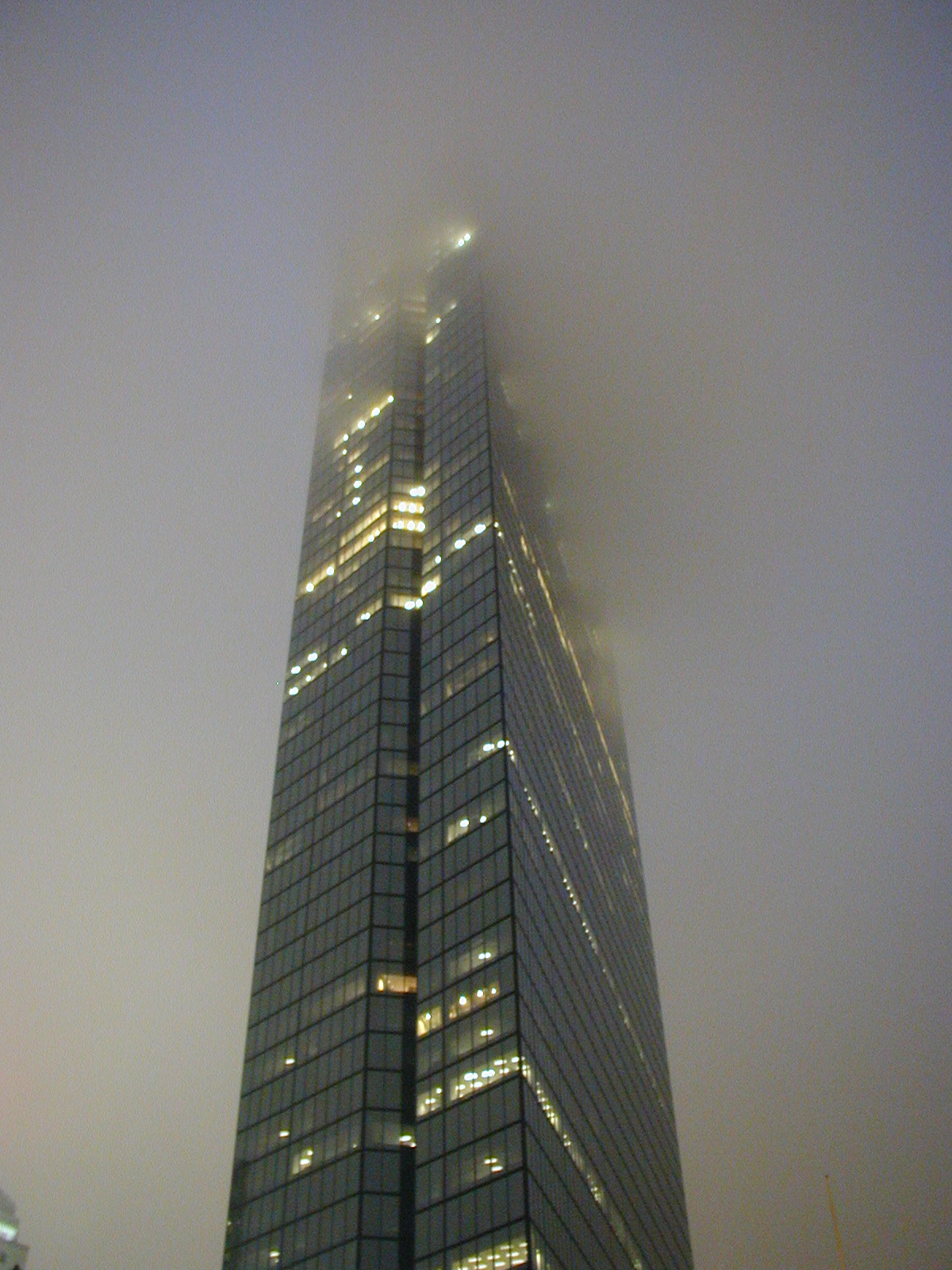
Caption block syntax
Enable caption block syntax:
GLightbox title and description
See: GLightbox - Setting title and description with attributes
{ width="300" data-title="Boston Tower, U.S.A." data-description="Walking around Boston in the fog is a refreshing passtime." }
/// caption
Boston tower (300 px)
///
Click the image to see how GLightbox renders title and description.
Boston tower (300 px)
HTML <figcaption> tag
<figure markdown="span">
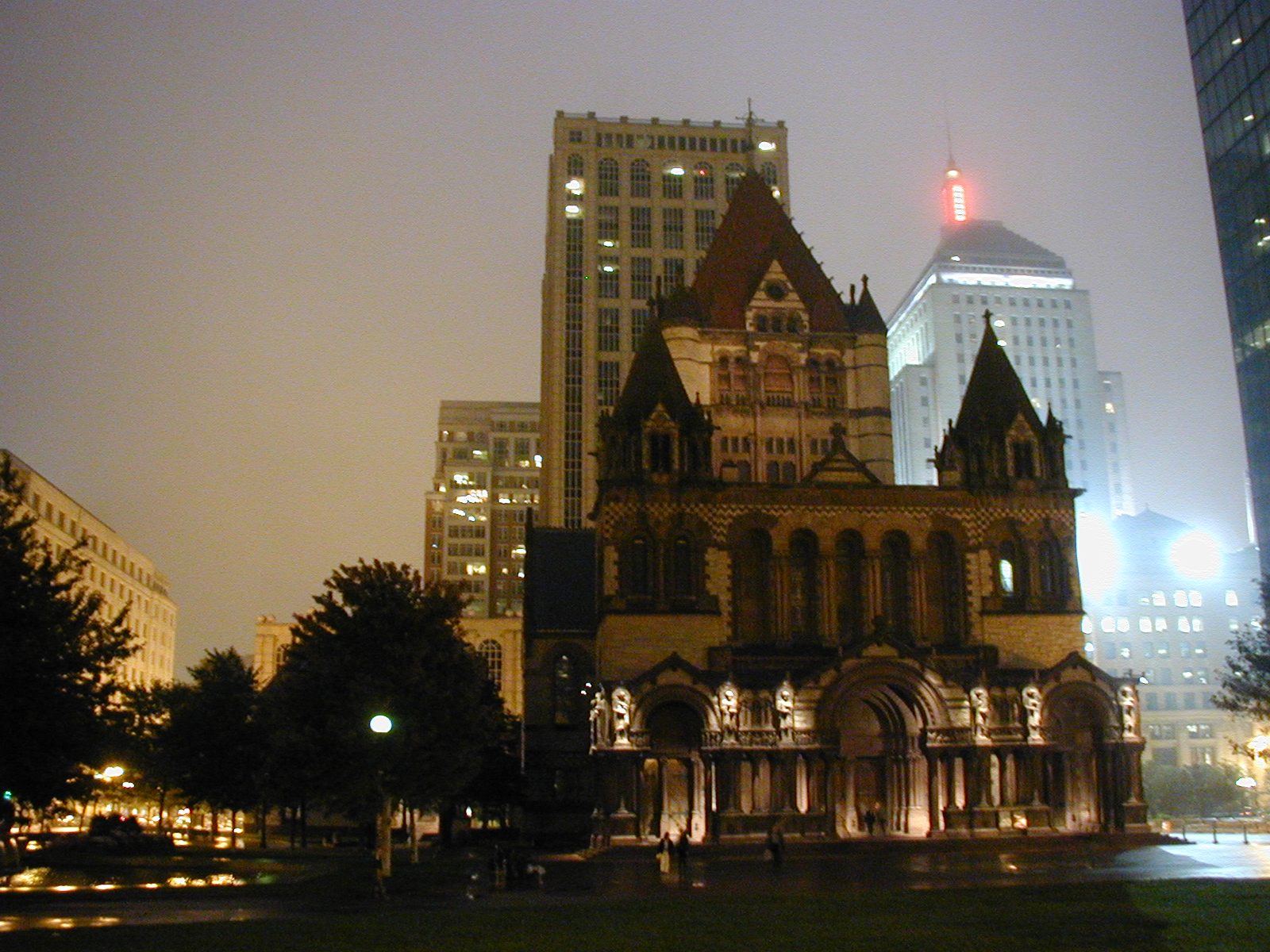
<figcaption>Boston church</figcaption>
</figure>

Image alignment
<div class="grid" markdown>
{ align=left width="300" .glightbox-skip-class }
__Lorem ipsum dolor__{ style="color:teal"; } sit amet, consectetur adipiscing elit. Nulla et euismod nulla. Curabitur feugiat,
tortor non consequat finibus, justo purus auctor massa, nec semper lorem quam in massa.
</div>
<hr>
<div class="grid" markdown>
{ align=right width="300" .glightbox-skip-class }
__Lorem ipsum dolor__{ style="color:teal"; } sit amet, consectetur adipiscing elit. Nulla et euismod nulla. Curabitur feugiat,
tortor non consequat finibus, justo purus auctor massa, nec semper lorem quam in massa.
</div>
<hr>
<div class="grid" markdown>
*Irrespective of the specified alignment, a large image will sit above any follow-on text.*
{ align=right .glightbox-skip-class }
__Lorem ipsum dolor__{ style="color:teal"; } sit amet, consectetur adipiscing elit. Nulla et euismod nulla. Curabitur feugiat,
tortor non consequat finibus, justo purus auctor massa, nec semper lorem quam in massa.
</div>
About the GLightbox skip class
A custom HTML/CSS skip-class-name, when applied to an image, tells the Glightbox plugin to skip
or ignore that specific image instead of applying a zoom/lightbox effect to it.
Configure the skip-classes array of class names in zensical.toml, e.g. glightbox-skip-class:
Lorem ipsum dolor sit amet, consectetur adipiscing elit. Nulla et euismod nulla. Curabitur feugiat,
tortor non consequat finibus, justo purus auctor massa, nec semper lorem quam in massa.
Lorem ipsum dolor sit amet, consectetur adipiscing elit. Nulla et euismod nulla. Curabitur feugiat,
tortor non consequat finibus, justo purus auctor massa, nec semper lorem quam in massa.
Irrespective of the specified alignment, a large image will sit above any follow-on text.
Lorem ipsum dolor sit amet, consectetur adipiscing elit. Nulla et euismod nulla. Curabitur feugiat,
tortor non consequat finibus, justo purus auctor massa, nec semper lorem quam in massa.